
Templates let you create new articles with a ready-made structure — headings, sections, and hints for what to fill in. Team templates are available to all workspace members.
Creating an Article from a Template
- Click + New page → select From template
- Choose a template from the gallery
- The article is created with the pre-built structure
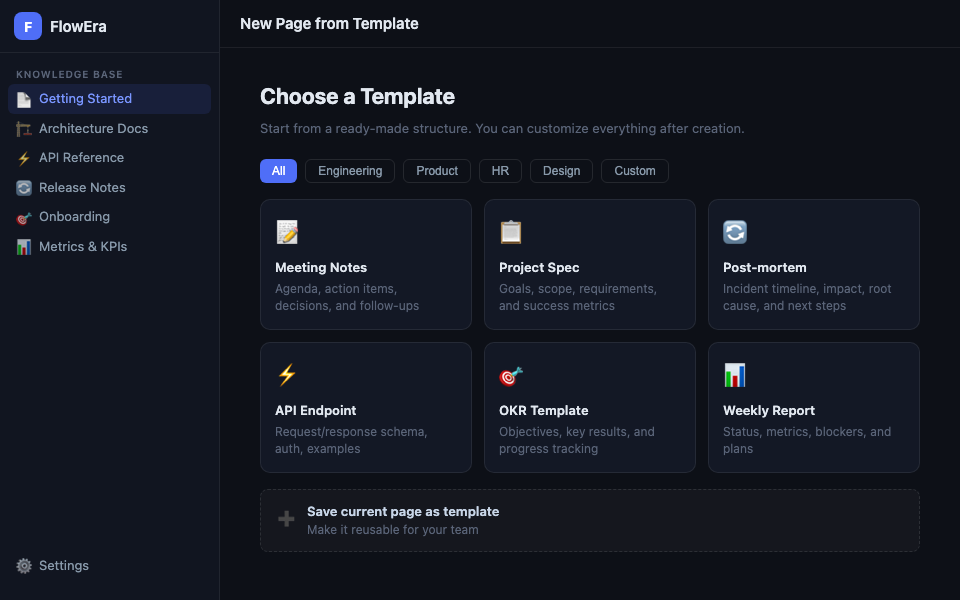
Built-in Templates
FlowEra includes ready-made templates for common use cases:
| Template | Structure |
|---|---|
| Meeting Notes | Meeting goal, attendees, agenda, decisions, next steps |
| Project Spec | Goals, scope, requirements, success criteria |
| Post-mortem | Incident timeline, impact, root cause, action items |
| API Endpoint | Description, request/response schema, examples, errors |
| OKR Template | Objectives, key results, progress, notes |
| Weekly Report | Status, metrics, blockers, plans for next week |
Creating a Team Template
Any article can be saved as a template:
- Create and fill in an example article
- Click
⋯in the toolbar → Save as template - Enter a name, category, and description
- Save — the template appears in the gallery for the whole team
Placeholders in Templates
Templates can include hints indicating what to fill in. Use this syntax:
## Meeting Goal
{{Describe the goal in 1-2 sentences}}

## Attendees
{{List attendees and their roles}}
When creating an article from a template, placeholders are highlighted — click any to replace the text.
Managing Templates
Go to KB Settings → Templates to:
- Edit existing templates
- Delete outdated ones
- Change categories and gallery order
- Restrict editing (admins only)
Personal Templates
In addition to team templates, each member can create personal templates — visible only to them. Handy for recurring personal documents.