
FlowEra automatically saves the complete change history of every article. You can view any past version and restore it if needed.
Opening History
⌘⇧H— opens the history panel- Or click
⋯in the article toolbar → Version history
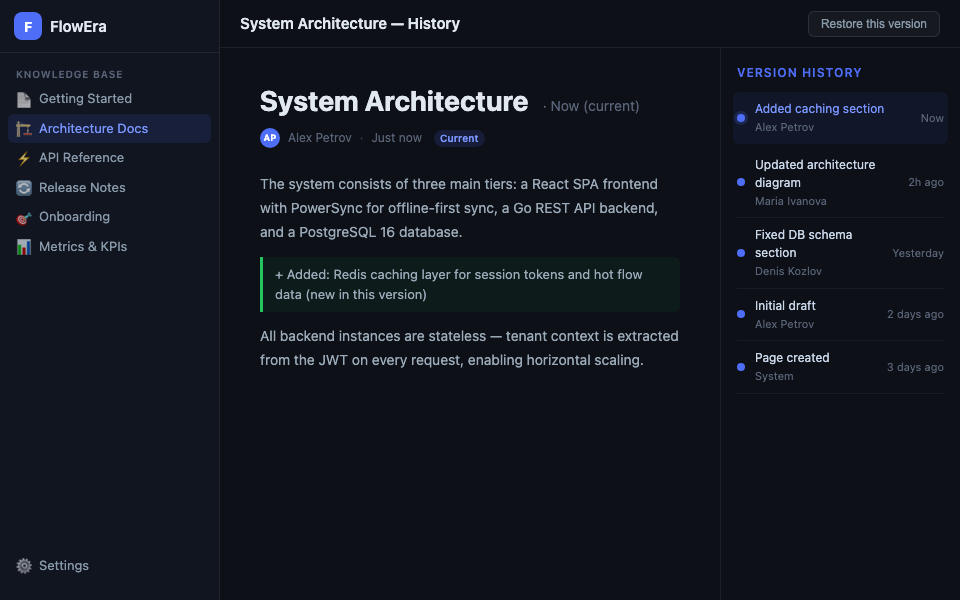
Browsing Versions
The right panel shows versions in chronological order. Each entry shows:
- Who made the changes
- When (relative: «2 hours ago», absolute on hover)
- A brief description (auto-generated: «Updated 3 blocks», or your label)
Click a version — the article content switches to that version (read-only mode).
Current Version is Highlighted
The version you’re currently editing is marked Current. When viewing an older version, a Restore this version button appears.
Comparing Versions
Click Compare → select a second version to compare against. Changes are highlighted:
- 🟢 Green — added text
- 🔴 Red — deleted text
- 🔵 Blue — changed formatting
Restoring a Version
- Select the desired version in the panel
- Click Restore this version
- Confirm the action
The current version is not deleted — it’s saved in history. The restored version becomes the new «Current».
Version Labels
Add a label to important versions: click ⋯ next to a version → Add label. For example:
v1.0 — initial releaseapproved by teambefore restructure
Labeled versions are easier to find in a long history.
History Retention
| Plan | History depth |
|---|---|
| Free | 30 days |
| Team | 1 year |
| Enterprise | Unlimited |