
To format text, select a fragment — a floating toolbar appears above the selection with available styles.
Floating Toolbar
Select any text with the mouse or keyboard. A toolbar appears above the selection:
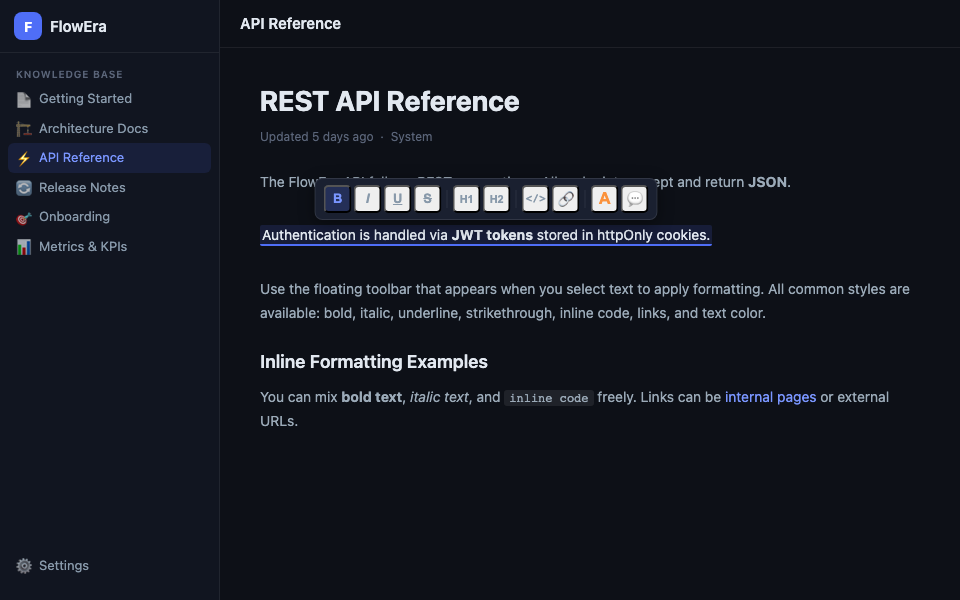
Available toolbar actions:
| Button | Action |
|---|---|
| B | Bold (⌘B) |
| I | Italic (⌘I) |
| U | Underline |
| Strikethrough | |
| H1, H2 | Convert to heading |
</> | Inline code |
| 🔗 | Add link |
| A | Text color |
| 💬 | Add comment |
Text Color
Click the colored A button in the toolbar to choose a color:
- Standard colors: gray, red, orange, yellow, green, blue, purple
- Background color (highlight): same colors applied as background fill
Links
Select text and press ⌘K (or the 🔗 button). In the field that appears, enter:
- URL for an external page
- Article title for an internal KB link
https://example.com          → external link
Getting Started              → KB page link
/en/docs/kb/editor           → link by path
To edit or remove a link, click it — a tooltip with «Edit» and «Remove» options appears.
Inline Code
Press ⌘E to format a word or expression as code:
Use the `db.execute()` method to write data.For larger code snippets, use a code block.
Pasting Text
| Method | Result |
|---|---|
⌘V | Paste with original formatting |
⌘⇧V | Paste plain text only (no styles) |
When pasting from other sources (Google Docs, Word), FlowEra converts formatting automatically. Use ⌘⇧V for clean plain-text paste.