
Comments are anchored to a specific text fragment in an article. Great for review workflows, discussing inaccuracies, and collecting feedback.
Adding a Comment
- Select the text you want to comment on
- Click the 💬 icon in the floating toolbar, or press
⌘Alt+M - Type your comment → Enter
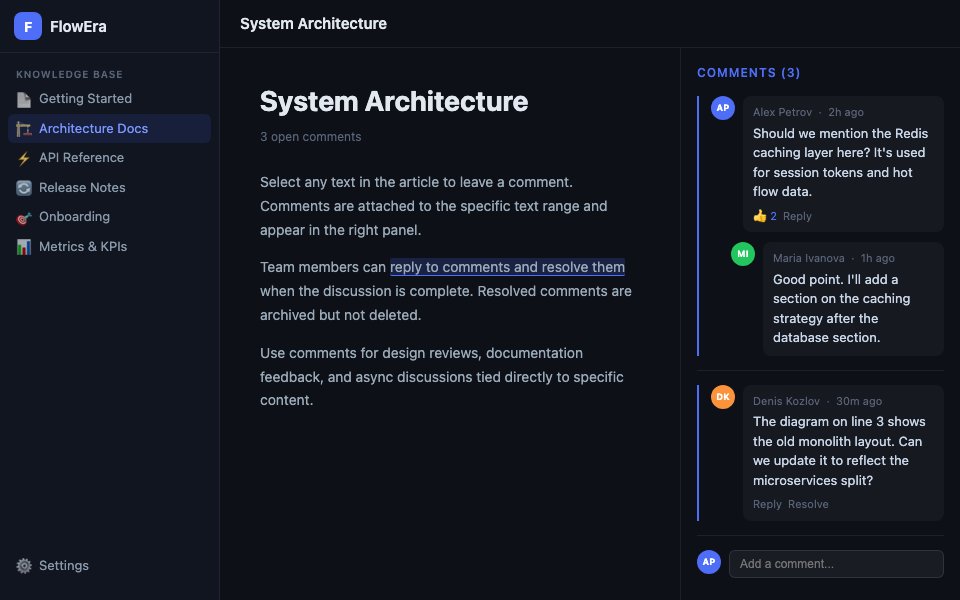
The commented text gets a dotted underline. A discussion thread appears in the right panel.
Replies
Each thread can have replies — click Reply below a comment. Replies form a discussion chain.
Mentions
Type @ in a comment to mention a team member. They’ll receive a notification. You can mention any workspace member — regardless of whether they have access to this specific article.
Resolving a Comment
When the issue is addressed, click Resolve on the thread. The comment:
- Disappears from active comments
- Moves to «Resolved comments» (accessible in history)
- The text underline is removed
Reactions
Each comment has reaction buttons: 👍 👎 ❤️ 😄. Click to add. The reaction count is visible without opening the thread.
Viewing All Comments
The right panel has filters:
- Open — active comments
- Resolved — resolved threads
- Mine — current user’s comments
Notifications
| Event | Who receives a notification |
|---|---|
| New comment | All members with article access |
| Reply | Comment author + mentioned users |
| Resolved | Original comment author |
@ mention | Mentioned member |
Comments are not exported to PDF or Markdown — they remain only in the FlowEra interface.