
Code blocks support syntax highlighting for over 40 programming languages. Perfect for documenting APIs, configuration examples, and technical guides.
Creating a Code Block
Three ways to add a code block:
- Slash menu — type
/codeand press Enter - Markdown — type three backticks
```and press Enter - Shortcut — not supported (use the slash menu)
Choosing a Language
After creating a block, click the language label in the header (defaults to «Plain Text»). A searchable dropdown opens:
- TypeScript / JavaScript
- Go, Python, Rust, Java, C++
- SQL, JSON, YAML, TOML
- Bash / Shell
- HTML, CSS, Markdown
- 30+ other languages
Start typing the language name for quick filtering.
Copy Button
The Copy button is in the top-right corner of the block header. Click it to copy the entire content to the clipboard. The button changes to «Copied!» for 2 seconds.
Line Numbers
For long blocks, enable line numbering via the ⋯ menu in the block header. Line numbers help when referencing specific lines in discussion.
Inline Code
For short code fragments within text, use inline code:
- Select text → press
⌘E - Or wrap text in single backticks:
`db.execute()`
Inline code is displayed in a monospace font with a dark background.
Examples
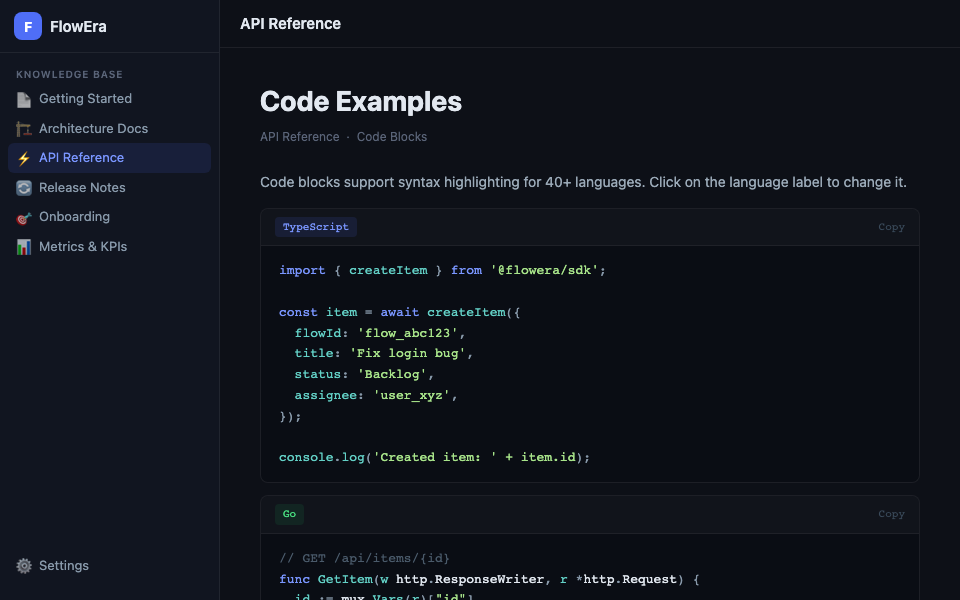
TypeScript
const item = await createItem({
  flowId: 'flow_abc123',
  title: 'Fix login bug',
  status: 'Backlog',
});
SQL
SELECT i.id, i.title, i.status
FROM items i
JOIN flows f ON f.id = i.flow_id
WHERE f.tenant_id = $1
  AND i.status != 'Done'
ORDER BY i.created_at DESC;
YAML (configuration)
powersync:
  url: https://sync.flowera.io
  tables:
    - name: items
      columns:
        - name: id
          type: TEXT
        - name: status
          type: TEXT
Code blocks export correctly to PDF, Markdown, and HTML — formatting is preserved.