
Manage access to individual articles or entire KB sections. Invite members with different permission levels and create public links for external readers.
Opening Permissions Settings
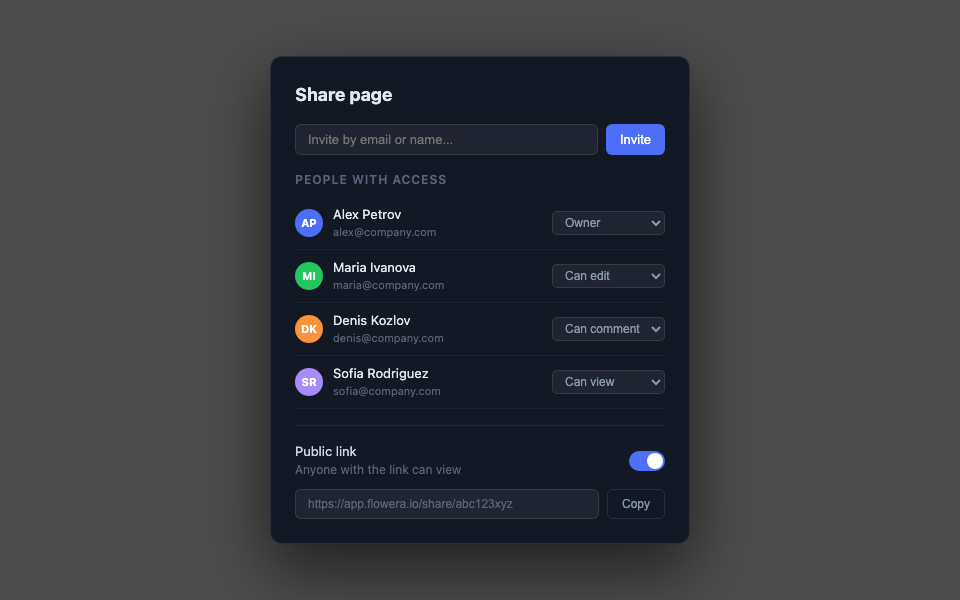
Click the Share button in the article toolbar, or ⋯ → Share / Permissions.
Member Roles
| Role | Read | Comment | Edit | Invite |
|---|---|---|---|---|
| Owner | ✓ | ✓ | ✓ | ✓ |
| Can edit | ✓ | ✓ | ✓ | — |
| Can comment | ✓ | ✓ | — | — |
| Can view | ✓ | — | — | — |
Inviting Members
- Enter an email or name in the input field
- Select a role
- Click Invite
The member receives an email notification with a direct link to the article.
Public Link
Enable the Public link toggle to make the article accessible without login:
- Anyone with the link can read the article
- Commenting and editing are disabled for external users
- The link can be revoked at any time — it immediately becomes invalid
https://app.flowera.io/share/abc123xyzPermission Inheritance
By default, child pages inherit parent page permissions. When changing permissions on a parent, you’ll be asked:
- Apply to all child pages
- Apply only to the current page
Section-Level Access
Configure permissions for an entire KB section via KB Settings → Access:
- The entire workspace has access to all KB by default
- Restrict a section to specific members or roles
- Example: HR section — HR team only
Invitation Notification
When you grant access to a member, they receive an email and an in-app notification. You can add a personal message to the invitation form.