
Callout blocks visually highlight important information — with an icon and a colored left border. Use them for tips, warnings, critical notes, and success messages.
Creating a Callout
- Slash menu:
/callout→ Enter - A callout is created as an info type (blue, 💡)
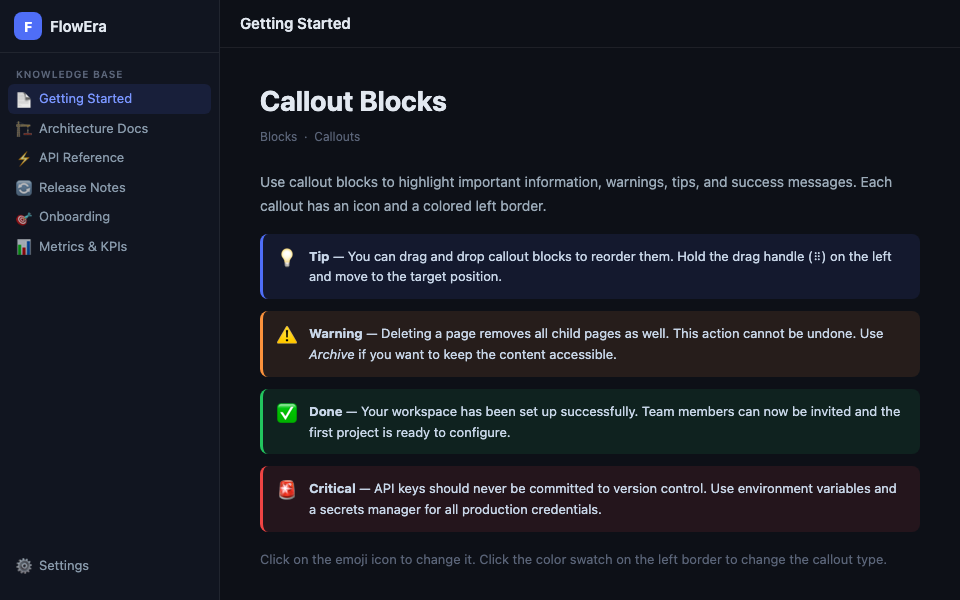
Callout Types
| Type | Color | Icon | Use case |
|---|---|---|---|
| Info | Blue | 💡 | Tips, useful facts |
| Warning | Orange | ⚠️ | Cautions, watch out |
| Success | Green | ✅ | Confirmations, good examples |
| Error | Red | 🚨 | Critical errors, prohibitions |
Change the type by clicking the colored bar on the left side of the block.
Icon
Click the callout icon to change it. An emoji picker opens — choose any emoji. You can remove the icon by selecting «No emoji».
Content
Inside a callout you can write regular text with formatting: bold, italic, code, links. Line breaks within the callout use Shift+Enter.
You cannot nest other blocks (code, tables, images) inside a callout — only inline content.
Practical Examples
Technical tip
💡 Tip — If the API returns 429 Too Many Requests, add exponential backoff. Start at 1 second, multiply by 2 on each retry.
Destructive operation warning
⚠️ Warning — Deleting a workspace is irreversible. All projects, tasks, articles, and files will be permanently deleted. Export your data before proceeding.
Version notice
ℹ️ Requires version 2.1+ — The offline mode feature is available starting with FlowEra 2.1. Update the app in settings.
Callouts render well on mobile — the colored border and icon remain prominent on small screens.