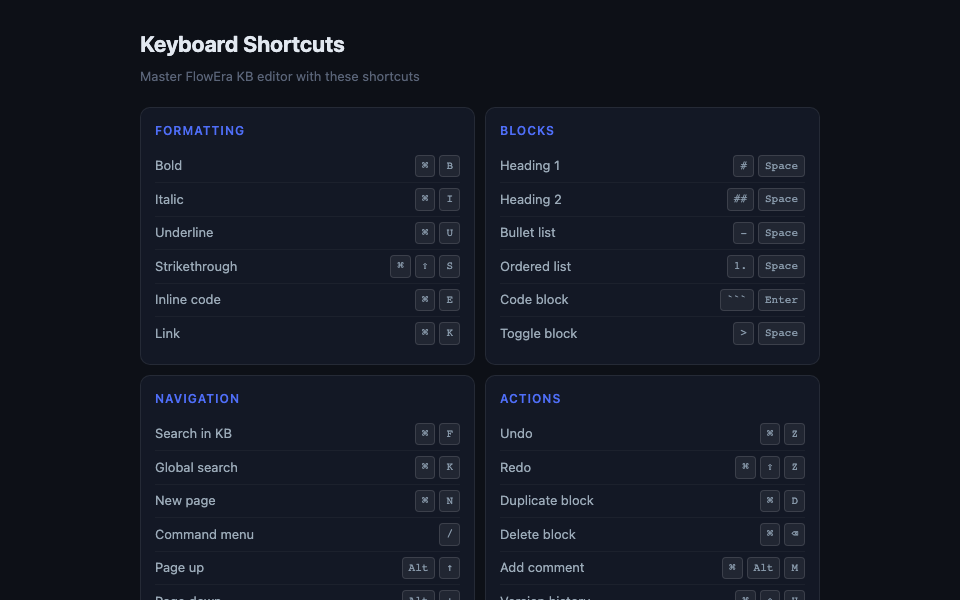
Keyboard shortcuts speed up your work in the editor. Most commands follow standard text editor conventions — if you’ve used Notion, Confluence, or Google Docs, you’ll feel at home.
Text Formatting
Action
Mac
Windows/Linux
Bold
⌘B
Ctrl+B
Italic
⌘I
Ctrl+I
Underline
⌘U
Ctrl+U
Strikethrough
⌘⇧S
Ctrl+Shift+S
Inline code
⌘E
Ctrl+E
Link
⌘K
Ctrl+K
Clear formatting
⌘\
Ctrl+\
Blocks via Markdown
Type
Result
# + Space
Heading H1
## + Space
Heading H2
### + Space
Heading H3
- + Space
Bulleted list
1. + Space
Numbered list
> + Space
Blockquote
``` + Enter
Code block
> + Space
Toggle block
Working with Blocks
Action
Mac
Windows/Linux
Duplicate block
⌘D
Ctrl+D
Delete block
⌘⌫
Ctrl+Backspace
Move block up
Alt↑
Alt+↑
Move block down
Alt↓
Alt+↓
Select entire block
⌘A (twice)
Ctrl+A (twice)
Navigation
Action
Mac
Windows/Linux
Open command menu
/
/
Search in KB
⌘F
Ctrl+F
Global search
⌘K
Ctrl+K
New page
⌘N
Ctrl+N
Open version history
⌘⇧H
Ctrl+Shift+H
Editing
Action
Mac
Windows/Linux
Undo
⌘Z
Ctrl+Z
Redo
⌘⇧Z
Ctrl+Shift+Z
Cut
⌘X
Ctrl+X
Copy
⌘C
Ctrl+C
Paste without formatting
⌘⇧V
Ctrl+Shift+V
Comments & Collaboration
Action
Mac
Windows/Linux
Add comment
⌘Alt+M
Ctrl+Alt+M
Close panel
Esc
Esc
Tip: Press ? anywhere in the editor to open the full keyboard shortcut reference right in the interface.